Cloudflare Credentials Acquisition Guide
This guide explains how to obtain and configure the three core parameters required by AutoCFT:
CF_API_TOKEN– Cloudflare API Token (use least privilege)CF_ACCOUNT_ID– Cloudflare Account IDCF_TUNNEL_ID– Cloudflare Tunnel UUID
Prefer scoped API Tokens over the legacy Global API Key. Avoid using the Global Key in automation.
Table of Contents
- Concept Overview
- Preparation
- Obtain CF_ACCOUNT_ID
- Create Least-Privilege CF_API_TOKEN
- Get or Create Cloudflare Tunnel and CF_TUNNEL_ID
- Verify Configuration
- Common Issues & Troubleshooting
- Security Recommendations
- Quick Checklist
1. Concept Overview
CF_ACCOUNT_ID: Unique identifier of your Cloudflare account, required for account-level API endpoints.CF_API_TOKEN: Modern, scope-based API credential; safer than the Global API Key.CF_TUNNEL_ID: UUID of a Cloudflare Tunnel (formerly Argo Tunnel) used to manage ingress rules through the API.
2. Preparation
Make sure you have:
- A Cloudflare account (logged in at https://dash.cloudflare.com/).
- Optionally at least one active Zone (domain) if you plan to link DNS later.
- Decided the minimal permissions you need (Tunnel Read vs Edit, DNS Edit if required).
This workflow uses only REST API calls; you do not need the
cloudflaredCLI installed locally for credential retrieval.
3. Obtain CF_ACCOUNT_ID

Steps
- Log in to Cloudflare Dashboard.
- Enter any Zone's (domain) overview page.
- Look at the browser URL:
https://dash.cloudflare.com/<ACCOUNT_ID>/home/domains. - Copy
<ACCOUNT_ID>asCF_ACCOUNT_ID.
Alternative: List Accounts via API
Requires a token with account read permissions:
GET https://api.cloudflare.com/client/v4/accounts
Authorization: Bearer <CF_API_TOKEN>
Response field: result[0].id (choose the correct account if multiple returned).
4. Create Least-Privilege CF_API_TOKEN
Target Permissions (adjust to needs)
- Account → Cloudflare Tunnel → Edit (or Read if you only inspect state and never update ingress)
Reduce scopes whenever possible. If you only read tunnel status, select Read instead of Edit.
Steps
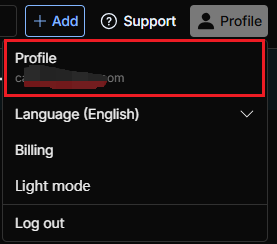
- Open avatar menu (top-right) → "Profile".
- Left sidebar → "API Tokens".
- Click "Create Token".

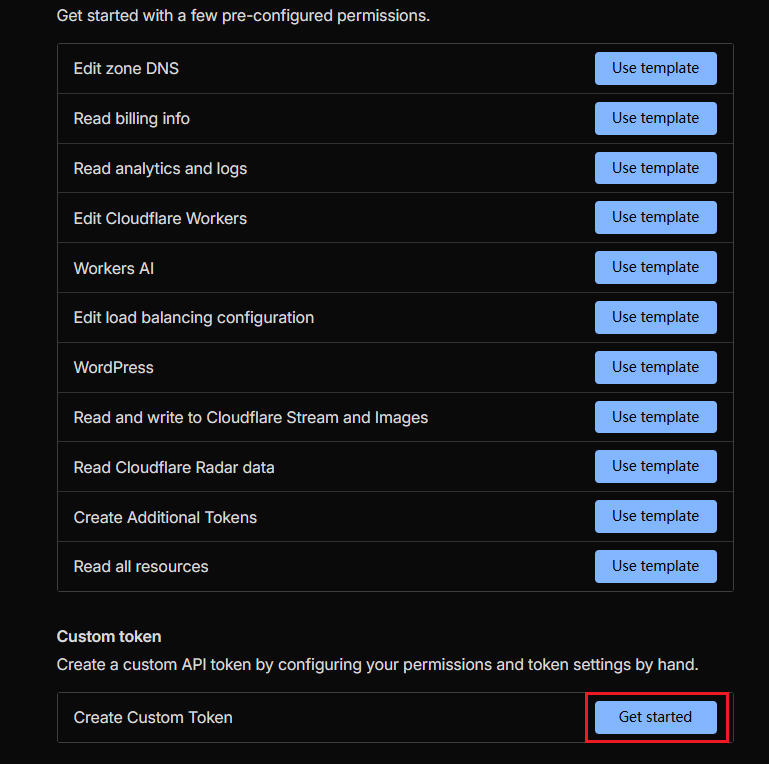
- Select "Create Custom Token".
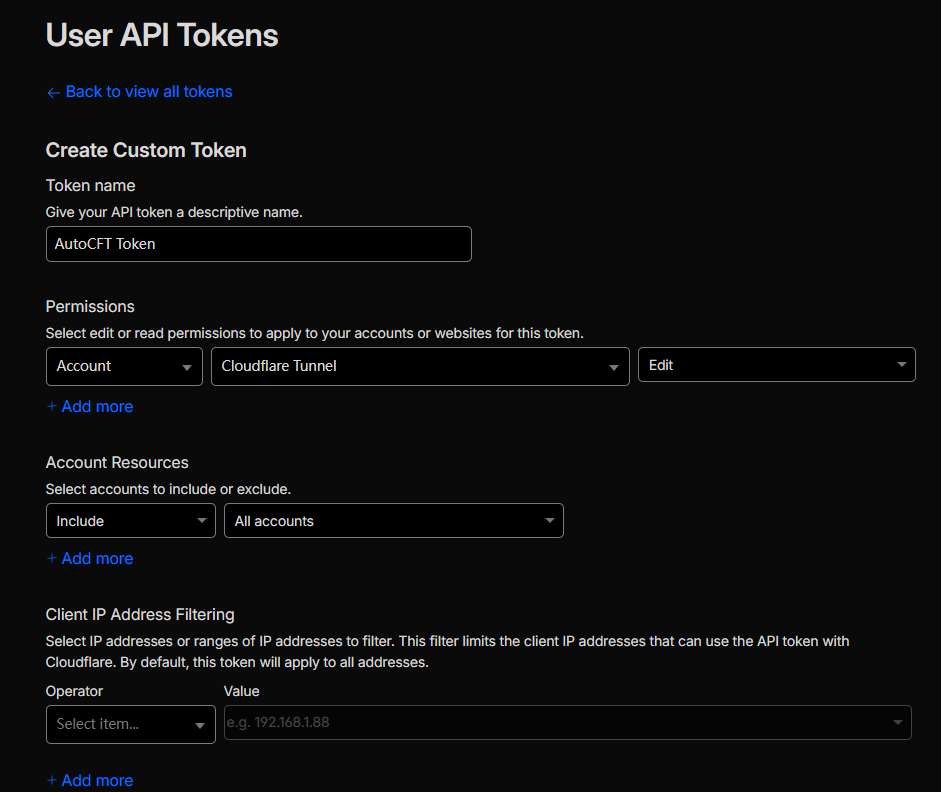
- Set a descriptive name, e.g.
AutoCFT Token. - Add permission:
Account / Cloudflare Tunnel / Edit(or Read). - Restrict Account resources to the specific account (or all if only one exists).
- (Optional) Add IP restrictions or TTL.
Continue to summary, create, and copy the token (shown only once).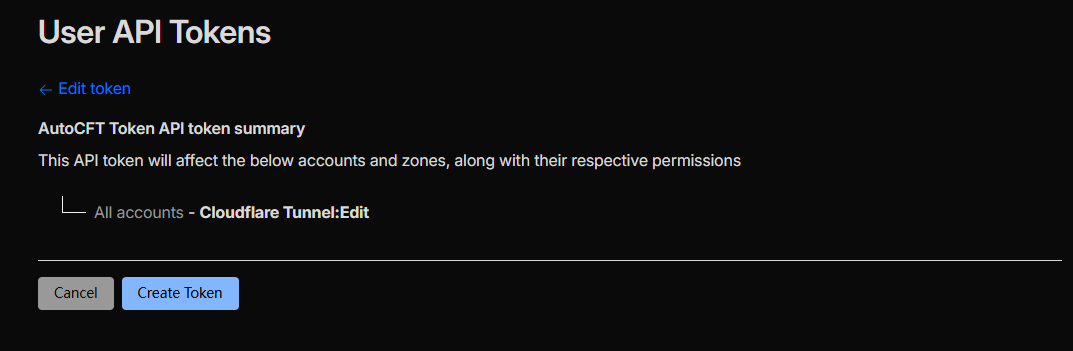
- Store it securely as
CF_API_TOKEN.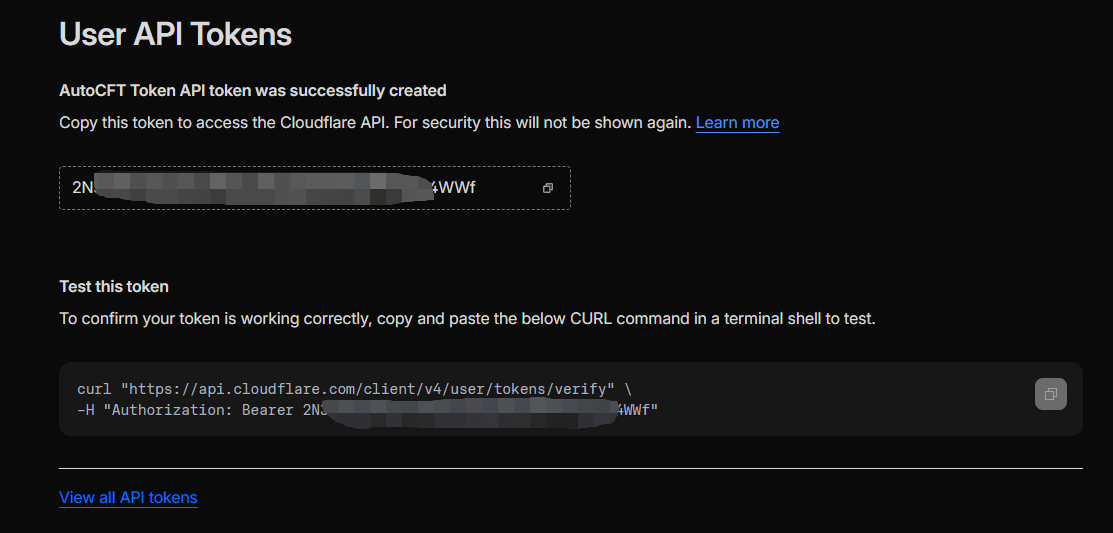
5. Get or Create Cloudflare Tunnel and CF_TUNNEL_ID
You can use either Dashboard or API.
A. Dashboard
- Navigate or search for "Zero Trust" in the left navigation.
- Go to Network → Connectors.
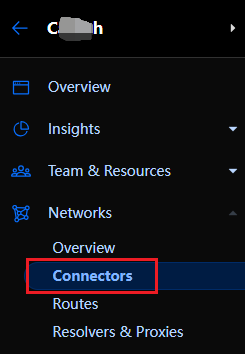
- Click the desired Tunnel row.
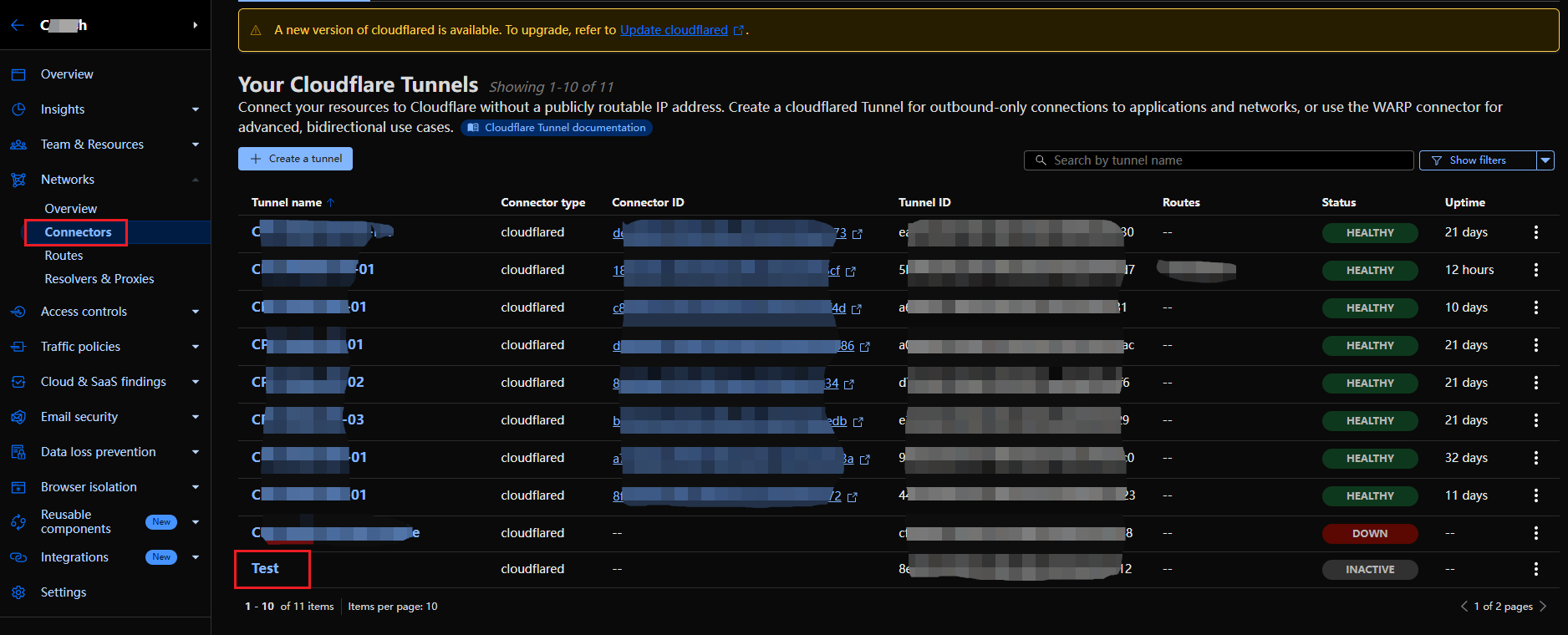
- Copy the UUID (visible in details or URL) as
CF_TUNNEL_ID.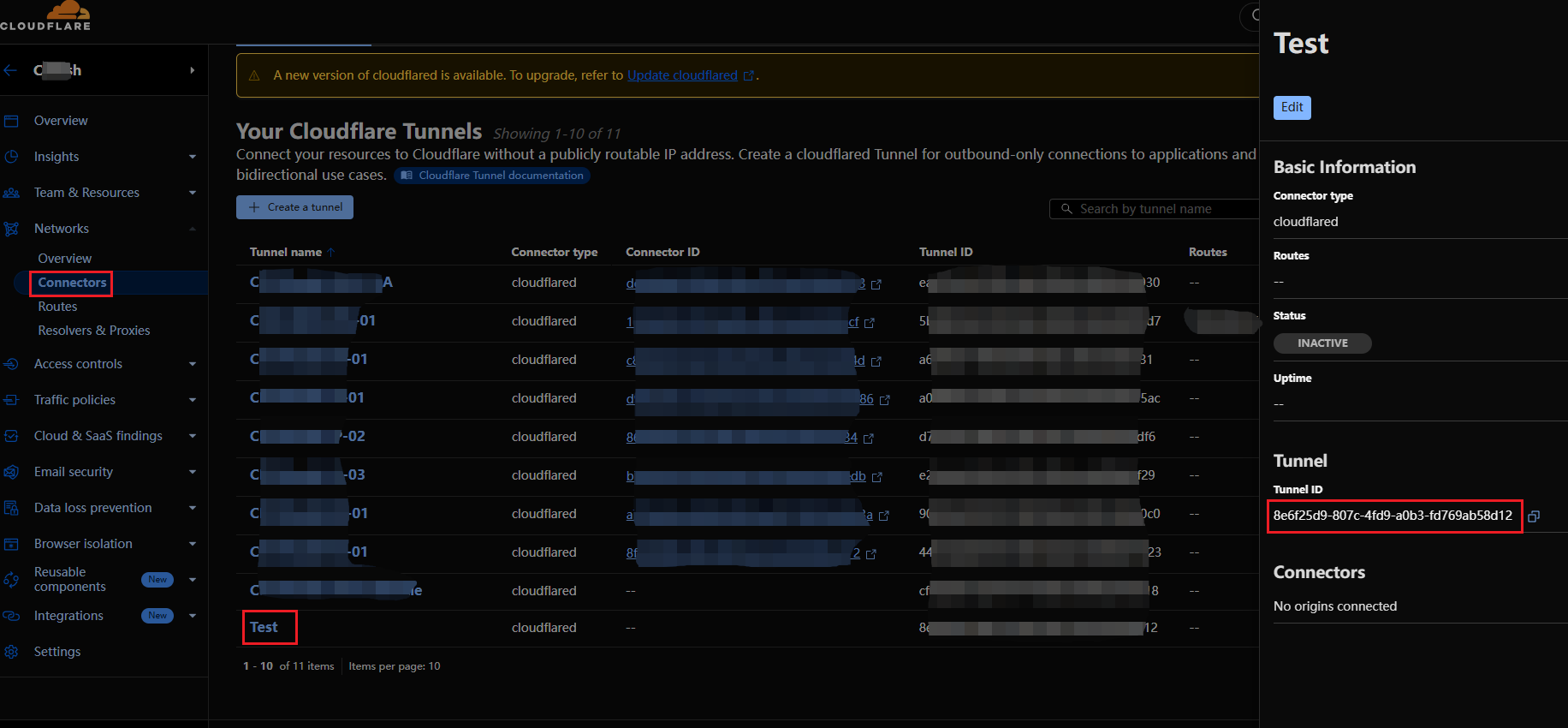
B. API: List Existing Tunnels
curl -X GET "https://api.cloudflare.com/client/v4/accounts/<CF_ACCOUNT_ID>/cfd_tunnel" \
  -H "Authorization: Bearer <CF_API_TOKEN>" \
  -H "Content-Type: application/json"
Example snippet:
{
  "success": true,
  "result": [
    {
      "id": "3a1b2c3d-4e5f-6789-abcd-0123456789ef",
      "name": "my-tunnel",
      "created_at": "2025-10-01T02:33:11Z",
      "connections": [...]
    }
  ]
}
Each result[i].id is a tunnel UUID. Empty array = no tunnels yet.
6. Verify Configuration
Set Environment Variables (Windows CMD Example)
set CF_API_TOKEN=xxxxxxxxxxxxxxxx
set CF_ACCOUNT_ID=xxxxxxxxxxxxxxxxxxxxxxxxxxxxx
set CF_TUNNEL_ID=3a1b2c3d-4e5f-6789-abcd-0123456789ef
Verify Tunnel Accessible
curl -X GET "https://api.cloudflare.com/client/v4/accounts/%CF_ACCOUNT_ID%/cfd_tunnel/%CF_TUNNEL_ID%" ^
  -H "Authorization: Bearer %CF_API_TOKEN%" ^
  -H "Content-Type: application/json"
Should return JSON containing matching id.
List All Tunnels (Permission Recheck)
curl -X GET "https://api.cloudflare.com/client/v4/accounts/%CF_ACCOUNT_ID%/cfd_tunnel" ^
  -H "Authorization: Bearer %CF_API_TOKEN%" ^
  -H "Content-Type: application/json"
Common HTTP Codes
- 200: Success
- 403: Missing or insufficient tunnel scope
- 401: Invalid / revoked token
7. Common Issues & Troubleshooting
| Issue | Likely Cause | Recommendation |
|---|---|---|
| 403 Forbidden | Token lacks Tunnel scope | Recreate token with Account → Cloudflare Tunnel → Read/Edit |
| Empty list | No tunnel exists | Create a tunnel (Dashboard or API POST) |
| Tunnel not found | Wrong Account ID | Confirm URL-derived ID matches token scope |
| DNS not auto-updated | Missing Zone DNS Edit permission | Add Zone / DNS / Edit scope or update manually |
| Wrong UUID pasted | Extra characters copied | Copy only the 36-char UUID (with 4 dashes) |
| Global API Key used | Confused key types | Migrate to scoped API Token; revoke unused global key |
8. Security Recommendations
- Apply least privilege: limit scopes & account resources.
- Never commit tokens to version control; use environment variables or a secret manager.
- Rotate tokens periodically; revoke unused ones promptly.
- In CI/CD, store secrets using platform facilities (e.g. GitHub Actions Secrets).
- Mask tokens in logs (show only first & last few characters if needed).
9. Quick Checklist
- Correct
CF_ACCOUNT_IDobtained (Dashboard URL or API list). - Least-privilege
CF_API_TOKENcreated & stored securely. CF_TUNNEL_IDidentified (or created) and verified via GET.- Environment variables exported for runtime use.
- API test call returns expected tunnel JSON.
After completing these steps, you can safely configure Cloudflare integration for AutoCFT.